
YOLO Waste Detection Using Python: Build a Real-Time Waste Detection System
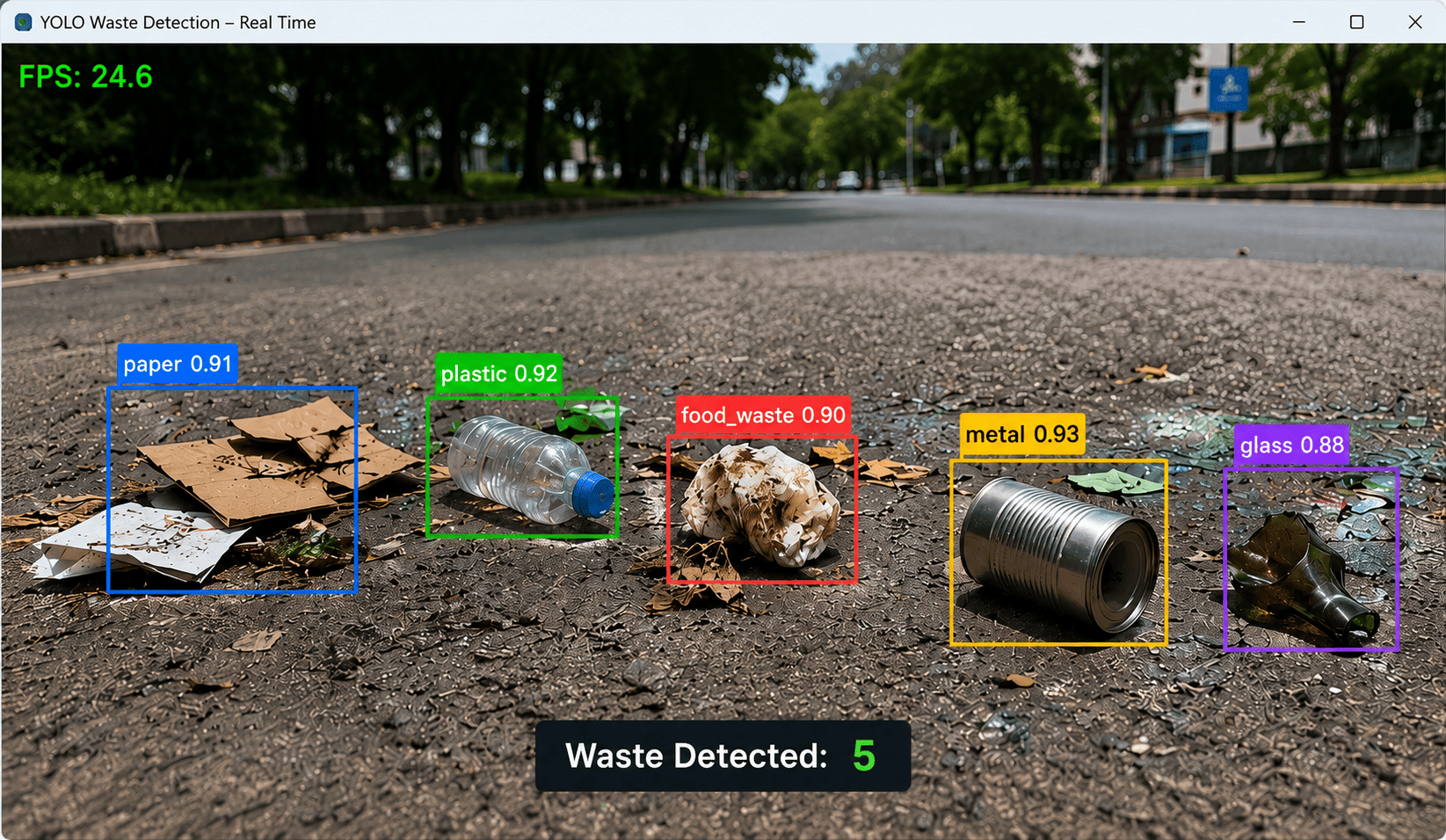
Waste management is an important environmental challenge. Identifying and separating waste manually can be time-consuming, especially in large public areas, recycling facilities, factories, and waste collection centers.
Computer vision and artificial intelligence can help automate this process.
In this tutorial, we will build a Waste Detection System using YOLO, Python, and OpenCV. The system can detect different types of waste in images and videos and can be extended to support real-time monitoring and waste classification.
We will cover:
What waste detection is
How YOLO works
Detecting waste in images
Real-time waste detection
Detecting different waste categories
Counting waste objects
Creating a custom waste dataset
Training a YOLO model
Building a waste monitoring system
Improving detection accuracy
What Is Waste Detection?
Waste detection is the process of using computer vision to identify waste objects automatically from images or video.
For example, a camera could detect:
Plastic Bottle
Plastic Bag
Can
Paper
Cardboard
Glass Bottle
Food Waste
The AI model identifies each object and places a bounding box around it.
For example:
Plastic Bottle → 94%
Can            → 91%
Paper          → 89%
This information can then be used for waste monitoring, recycling, sorting, or analytics.
Why Use YOLO for Waste Detection?
YOLO is a popular real-time object detection architecture.
For every detected waste object, YOLO can provide:
Class
Confidence
Bounding Box
For example:
Class: plastic_bottle
Confidence: 0.94

Bounding Box:
x1 = 150
y1 = 100
x2 = 310
y2 = 280
YOLO is useful for waste detection because it can process multiple objects in the same image.
For example, one image might contain:
Plastic Bottle
Can
Paper
Cardboard
Glass Bottle
The model can detect them simultaneously.
Waste Detection vs Waste Classification
These two concepts are slightly different.
Waste Classification
Classification answers:
What type of waste is in this image?
For example:
Image
 ↓
Plastic Bottle
Waste Detection
Detection answers:
Where are the waste objects and what type are they?
For example:
Image
 ↓
┌──────────────┐
│ Plastic      │
│ Bottle       │
└──────────────┘

┌──────────┐
│   Can    │
└──────────┘
YOLO performs object detection, making it suitable for scenes containing multiple waste objects.
Example Waste Classes
A waste detection dataset can contain classes such as:
plastic_bottle
plastic_bag
can
paper
cardboard
glass
food_waste
metal
You can choose the classes based on your application.
For a recycling project, you might use:
plastic
paper
metal
glass
organic
For a litter detection project, you could use:
bottle
can
plastic_bag
paper
cup
wrapper
Technologies Used
This project uses:
Python
YOLO
Ultralytics
OpenCV
Install the required packages:
pip install ultralytics opencv-python
Create a requirements.txt file:
ultralytics
opencv-python
Install:
pip install -r requirements.txt
Project Structure
A simple project can look like:
yolo-waste-detection/
│
├── images/
│   └── waste.jpg
│
├── videos/
│   └── waste.mp4
│
├── detect_image.py
├── webcam.py
├── detect_video.py
├── count_waste.py
├── train.py
└── requirements.txt
1. Load the YOLO Model
Create:
detect_image.py
Then:
from ultralytics import YOLO

model = YOLO("best.pt")

print("Waste detection model loaded")
Here:
best.pt
should be a model trained to detect the waste categories you need.
A general pretrained YOLO model may recognize common objects such as bottles, but it does not automatically provide every waste-specific category.
For a reliable waste detection system, a custom dataset is recommended.
2. Detect Waste in an Image
Let's start with a simple image detection example.
from ultralytics import YOLO

model = YOLO("best.pt")

results = model("images/waste.jpg")

for result in results:
    result.show()
Run:
python detect_image.py
YOLO will analyze the image and draw bounding boxes around detected waste objects.
3. Get Waste Detection Information
Instead of simply displaying the image, we can access the prediction results.
from ultralytics import YOLO

model = YOLO("best.pt")

results = model("images/waste.jpg")

for result in results:

    for box in result.boxes:

        class_id = int(box.cls[0])
        confidence = float(box.conf[0])

        class_name = result.names[class_id]

        print(
            f"Class: {class_name} | "
            f"Confidence: {confidence:.2f}"
        )
Example output:
Class: plastic_bottle | Confidence: 0.95
Class: can            | Confidence: 0.92
Class: cardboard      | Confidence: 0.89
4. Add a Confidence Threshold
Low-confidence predictions can be ignored.
from ultralytics import YOLO

model = YOLO("best.pt")

results = model(
    "images/waste.jpg",
    conf=0.50
)

for result in results:
    result.show()
Here:
conf=0.50
means predictions below 50% confidence are filtered out.
You can experiment with:
0.30
0.40
0.50
0.60
0.70
The appropriate value depends on your model and environment.
5. Count Waste Objects in an Image
YOLO can also be used to count detected waste objects.
from ultralytics import YOLO

model = YOLO("best.pt")

results = model(
    "images/waste.jpg",
    conf=0.50
)

waste_count = 0

for result in results:

    for box in result.boxes:

        class_id = int(box.cls[0])
        class_name = result.names[class_id]

        if class_name in [
            "plastic_bottle",
            "plastic_bag",
            "can",
            "paper",
            "cardboard"
        ]:
            waste_count += 1

print("Total Waste:", waste_count)
Example:
Total Waste: 17
6. Count Waste by Category
Instead of calculating only the total number of objects, we can count each waste category.
Python's Counter is useful for this.
from collections import Counter
from ultralytics import YOLO

model = YOLO("best.pt")

results = model(
    "images/waste.jpg",
    conf=0.50
)

waste_counts = Counter()

for result in results:

    for box in result.boxes:

        class_id = int(box.cls[0])
        class_name = result.names[class_id]

        waste_counts[class_name] += 1

print(waste_counts)
Example:
Counter({
    'plastic_bottle': 8,
    'can': 5,
    'paper': 3,
    'cardboard': 2
})
This provides a more useful breakdown.
7. Real-Time Waste Detection With Webcam
We can use OpenCV to process a live camera.
Create:
webcam.py
Then:
import cv2
from ultralytics import YOLO

model = YOLO("best.pt")

camera = cv2.VideoCapture(0)

while True:

    success, frame = camera.read()

    if not success:
        break

    results = model(frame)

    annotated_frame = results[0].plot()

    cv2.imshow(
        "Waste Detection",
        annotated_frame
    )

    if cv2.waitKey(1) & 0xFF == ord("q"):
        break

camera.release()
cv2.destroyAllWindows()
Run:
python webcam.py
The webcam will display detected waste objects in real time.
8. Display the Current Waste Count
We can show the number of detected waste objects on the screen.
import cv2
from ultralytics import YOLO

model = YOLO("best.pt")

camera = cv2.VideoCapture(0)

while True:

    success, frame = camera.read()

    if not success:
        break

    results = model(
        frame,
        conf=0.50
    )

    waste_count = 0

    for result in results:

        for box in result.boxes:

            waste_count += 1

    annotated_frame = results[0].plot()

    cv2.putText(
        annotated_frame,
        f"Waste Objects: {waste_count}",
        (30, 50),
        cv2.FONT_HERSHEY_SIMPLEX,
        0.8,
        (0, 255, 0),
        2
    )

    cv2.imshow(
        "Waste Monitoring",
        annotated_frame
    )

    if cv2.waitKey(1) & 0xFF == ord("q"):
        break

camera.release()
cv2.destroyAllWindows()
The screen might display:
Waste Objects: 12
9. Detect Specific Waste Types
Sometimes we only want to detect a particular category.
For example, we can detect plastic bottles:
from ultralytics import YOLO

model = YOLO("best.pt")

results = model(
    "images/waste.jpg",
    conf=0.50
)

for result in results:

    for box in result.boxes:

        class_id = int(box.cls[0])
        class_name = result.names[class_id]

        if class_name == "plastic_bottle":

            confidence = float(box.conf[0])

            print(
                f"Plastic Bottle Detected: "
                f"{confidence:.2f}"
            )
This can be useful for applications specifically focused on plastic pollution.
10. Waste Detection in a Video
A recorded video can be processed using:
from ultralytics import YOLO

model = YOLO("best.pt")

results = model(
    source="videos/waste.mp4",
    save=True,
    conf=0.50
)
Run the program and YOLO will process the video frame by frame.
The annotated video can then be used for analysis.
11. Why Tracking Is Important for Waste Counting
Suppose a plastic bottle remains visible for 50 frames.
Without tracking:
Frame 1  → Bottle
Frame 2  → Bottle
Frame 3  → Bottle
...
Frame 50 → Bottle
If every detection is counted, the system might report:
50 bottles
when there is actually only one.
Object tracking helps maintain an identity for the same object.
For example:
Frame 1 → Bottle ID 1
Frame 2 → Bottle ID 1
Frame 3 → Bottle ID 1
Frame 4 → Bottle ID 1
Therefore, the application can recognize that these detections belong to the same bottle.
12. Waste Detection With Tracking
YOLO tracking can be enabled using:
from ultralytics import YOLO

model = YOLO("best.pt")

results = model.track(
    source="videos/waste.mp4",
    tracker="bytetrack.yaml",
    save=True,
    conf=0.50
)
The tracker can assign IDs:
Bottle ID: 1
Can ID: 2
Bottle ID: 3
Paper ID: 4
13. Real-Time Waste Tracking
import cv2
from ultralytics import YOLO

model = YOLO("best.pt")

camera = cv2.VideoCapture(0)

while True:

    success, frame = camera.read()

    if not success:
        break

    results = model.track(
        frame,
        persist=True,
        tracker="bytetrack.yaml",
        conf=0.50
    )

    annotated_frame = results[0].plot()

    cv2.imshow(
        "Waste Tracking",
        annotated_frame
    )

    if cv2.waitKey(1) & 0xFF == ord("q"):
        break

camera.release()
cv2.destroyAllWindows()
The system can now maintain tracking IDs between frames.
14. Count Unique Waste Objects
We can store tracking IDs using a Python set.
import cv2
from ultralytics import YOLO

model = YOLO("best.pt")

camera = cv2.VideoCapture(0)

unique_objects = set()

while True:

    success, frame = camera.read()

    if not success:
        break

    results = model.track(
        frame,
        persist=True,
        tracker="bytetrack.yaml",
        conf=0.50
    )

    result = results[0]

    if result.boxes.id is not None:

        track_ids = (
            result.boxes.id
            .int()
            .cpu()
            .tolist()
        )

        for track_id in track_ids:
            unique_objects.add(track_id)

    annotated_frame = result.plot()

    cv2.putText(
        annotated_frame,
        f"Objects Seen: {len(unique_objects)}",
        (30, 50),
        cv2.FONT_HERSHEY_SIMPLEX,
        0.8,
        (0, 255, 0),
        2
    )

    cv2.imshow(
        "Waste Counting",
        annotated_frame
    )

    if cv2.waitKey(1) & 0xFF == ord("q"):
        break

camera.release()
cv2.destroyAllWindows()
This gives the number of tracking IDs observed during the session.
For crowded scenes, object tracking can occasionally lose or change IDs, so the result should be validated against the actual application requirements.
15. Waste Counting With a Virtual Line
Another useful method is line-crossing detection.
For example, imagine a recycling conveyor:
       Waste Objects
             ↓
             ↓
========================
      COUNTING LINE
========================
             ↓
             ↓
       Sorting Area
When an object crosses the line:
Waste Count += 1
This can be useful for:
Recycling plants
Conveyor belts
Waste collection systems
Sorting facilities
Smart bins
16. Create a Counting Line
Define:
LINE_Y = 300
Draw it:
cv2.line(
    frame,
    (0, LINE_Y),
    (frame.shape[1], LINE_Y),
    (255, 0, 0),
    2
)
The line represents the area where an object will be counted.
17. Detect Objects Crossing the Line
We calculate the center of the bounding box:
x1, y1, x2, y2 = map(
    int,
    box.xyxy[0]
)

center_x = (x1 + x2) // 2
center_y = (y1 + y2) // 2
Then compare the object's previous and current positions.
For example:
Previous Y < LINE_Y
Current Y >= LINE_Y
means the object moved across the line.
18. Complete Waste Counting Example
Here is a complete basic line-crossing implementation:
import cv2
from ultralytics import YOLO

model = YOLO("best.pt")

camera = cv2.VideoCapture(0)

LINE_Y = 300

waste_count = 0

previous_positions = {}

counted_ids = set()

while True:

    success, frame = camera.read()

    if not success:
        break

    results = model.track(
        frame,
        persist=True,
        tracker="bytetrack.yaml",
        conf=0.50
    )

    result = results[0]

    if result.boxes.id is not None:

        boxes = (
            result.boxes.xyxy
            .cpu()
            .tolist()
        )

        track_ids = (
            result.boxes.id
            .int()
            .cpu()
            .tolist()
        )

        for box, track_id in zip(
            boxes,
            track_ids
        ):

            x1, y1, x2, y2 = map(
                int,
                box
            )

            center_x = (
                x1 + x2
            ) // 2

            center_y = (
                y1 + y2
            ) // 2

            previous_y = (
                previous_positions
                .get(track_id)
            )

            if (
                previous_y is not None
                and previous_y < LINE_Y
                and center_y >= LINE_Y
                and track_id not in counted_ids
            ):

                waste_count += 1

                counted_ids.add(
                    track_id
                )

            previous_positions[
                track_id
            ] = center_y

    annotated_frame = result.plot()

    cv2.line(
        annotated_frame,
        (0, LINE_Y),
        (
            annotated_frame.shape[1],
            LINE_Y
        ),
        (255, 0, 0),
        2
    )

    cv2.putText(
        annotated_frame,
        f"Waste Count: {waste_count}",
        (30, 50),
        cv2.FONT_HERSHEY_SIMPLEX,
        0.8,
        (0, 255, 0),
        2
    )

    cv2.imshow(
        "Waste Counting",
        annotated_frame
    )

    if cv2.waitKey(1) & 0xFF == ord("q"):
        break

camera.release()
cv2.destroyAllWindows()
This counts tracked waste objects when they cross the configured line.
19. Create a Custom Waste Dataset
For accurate waste detection, create a dataset containing the types of waste your application needs to recognize.
For example:
plastic_bottle
plastic_bag
can
paper
cardboard
glass
food_waste
Images should represent real-world conditions.
Include:
Indoor environments
Outdoor environments
Different lighting
Different camera angles
Different object sizes
Overlapping objects
Dirty objects
Partially hidden objects
20. Dataset Structure
A YOLO dataset can be organized like this:
waste-dataset/
│
├── images/
│   ├── train/
│   └── val/
│
├── labels/
│   ├── train/
│   └── val/
│
└── data.yaml
For example:
images/train/waste001.jpg
labels/train/waste001.txt
Each image should have a corresponding label file.
21. Annotate Waste Objects
Every waste object should receive a bounding box.
For example:
Image:
street.jpg

Objects:

plastic_bottle
can
paper
Each object gets its own bounding box.
If there are five bottles, annotate all five bottles individually.
This allows the YOLO model to learn how to detect separate objects.
22. YOLO Label Format
YOLO uses the following format:
class_id center_x center_y width height
For example:
0 0.520 0.430 0.180 0.250
If the dataset uses:
0 → plastic_bottle
1 → can
2 → paper
3 → cardboard
then the label files should use those corresponding class IDs.
23. Create data.yaml
Create:
data.yaml
Example:
path: ./waste-dataset

train: images/train
val: images/val

names:
  0: plastic_bottle
  1: can
  2: paper
  3: cardboard
  4: glass
  5: plastic_bag
The class names must match your annotations.
24. Train the YOLO Waste Detection Model
Create:
train.py
Then:
from ultralytics import YOLO

model = YOLO("yolo11n.pt")

model.train(
    data="data.yaml",
    epochs=50,
    imgsz=640,
    batch=16
)
Run:
python train.py
The model will learn the visual characteristics of the waste categories in your dataset.
25. Train From the Command Line
You can also train using:
yolo detect train \
    data=data.yaml \
    model=yolo11n.pt \
    epochs=50 \
    imgsz=640
A GPU is recommended for faster training.
26. Test the Trained Model
After training, the best model is typically available under the training output directory.
For example:
runs/detect/train/weights/best.pt
Load it:
from ultralytics import YOLO

model = YOLO(
    "runs/detect/train/weights/best.pt"
)

results = model(
    "test_waste.jpg",
    conf=0.50
)

for result in results:
    result.show()
The model should detect the waste categories it was trained on.
27. Waste Classification for Recycling
Waste detection can be combined with classification logic.
For example:
              Waste
                ↓
           YOLO Detection
                ↓
       ┌────────┼────────┐
       ↓        ↓        ↓
    Plastic    Metal    Paper
       ↓        ↓        ↓
   Recycling Recycling Recycling
The detected category can be used to decide which recycling bin or sorting path should receive the object.
28. Smart Waste Sorting
A more advanced system can combine computer vision with physical sorting equipment.
For example:
Camera
   ↓
YOLO Detection
   ↓
Waste Classification
   ↓
Controller
   ↓
Motor / Servo
   ↓
Sorting Bin
Possible categories:
Plastic
Metal
Paper
Glass
Organic
The AI system identifies the object while a controller can activate the appropriate sorting mechanism.
29. Smart Waste Bin
YOLO can also be used in a smart waste bin.
A camera can monitor the waste placed into the bin.
The system can detect:
Plastic
Paper
Can
Glass
Organic Waste
A dashboard could display:
=============================
       SMART WASTE BIN
=============================

Plastic:        42
Paper:          18
Metal:          13
Glass:           7

Total:          80
=============================
This information can be used for waste analytics.
30. Waste Detection Dashboard
A web dashboard can display information collected by the detection system.
For example:
====================================
        WASTE MONITORING
====================================

Total Waste:              1,284

Plastic Bottles:            420
Plastic Bags:               210
Cans:                       185
Paper:                      270
Cardboard:                  120
Glass:                       79

====================================
Additional features could include:
Live camera feed
Daily waste count
Weekly statistics
Waste category charts
Detection confidence
Camera location
Detection timestamps
31. Save Detection Data
When a waste object is detected, the application can save information such as:
Timestamp
Waste Type
Confidence
Camera ID
Tracking ID
Example:
from datetime import datetime

detection = {
    "timestamp": datetime.now().isoformat(),
    "camera_id": "CAM-01",
    "waste_type": "plastic_bottle",
    "confidence": 0.94
}

print(detection)
Example output:
{
    'timestamp': '2026-08-10T10:30:25',
    'camera_id': 'CAM-01',
    'waste_type': 'plastic_bottle',
    'confidence': 0.94
}
This data can be stored in a database for analytics.
32. Connect Waste Detection to an API
The Python application can send detection information to a backend server.
import requests

data = {
    "camera_id": "CAM-01",
    "waste_type": "plastic_bottle",
    "confidence": 0.94
}

response = requests.post(
    "https://example.com/api/waste",
    json=data
)

print(response.status_code)
A backend can then store the detection event.
A typical architecture is:
Camera
   ↓
YOLO
   ↓
Waste Detection
   ↓
Python Application
   ↓
Backend API
   ↓
Database
   ↓
Web Dashboard
33. Applications of YOLO Waste Detection
YOLO waste detection can be used in many areas.
Smart Cities
Detect litter in:
Roads
Parks
Public areas
Beaches
Recycling Facilities
Automatically identify waste categories on conveyor belts.
Waste Collection
Monitor the amount and type of waste collected.
Smart Bins
Identify waste placed into intelligent waste containers.
Environmental Monitoring
Detect litter and plastic waste in outdoor environments.
Industrial Waste Management
Monitor waste generated by manufacturing processes.
Beach Cleaning
Detect plastic bottles, bags, cans, and other litter.
34. Challenges in Waste Detection
Waste detection can be challenging because waste objects can have highly variable appearances.
Common problems include:
Object Occlusion
Objects may overlap.
Different Sizes
A bottle near the camera can be much larger than a bottle far away.
Dirty Objects
Waste can be damaged or covered with dirt.
Background Similarity
Some waste objects may have colors similar to their surroundings.
Low Lighting
Night-time or poorly lit scenes can reduce detection accuracy.
Deformed Objects
Plastic bags, paper, and cardboard can have unpredictable shapes.
35. Improve Waste Detection Accuracy
Several techniques can improve the model.
Use a Large Dataset
More diverse training images generally help the model handle different environments.
Include Real-World Images
If your application will monitor streets, train with street images.
If it will monitor a recycling facility, train with recycling-facility images.
Include Difficult Examples
Add images containing:
Overlapping waste
Small objects
Dirty waste
Partially hidden objects
Different lighting
Different backgrounds
Use Data Augmentation
Useful techniques include:
Rotation
Scaling
Cropping
Flipping
Brightness adjustment
Contrast adjustment
Blur
36. Model Evaluation
A waste detection model should be evaluated before deployment.
Important metrics include:
Precision
Measures how many predicted detections are correct.
Precision =
True Positives /
(True Positives + False Positives)
Recall
Measures how many actual waste objects were detected.
Recall =
True Positives /
(True Positives + False Negatives)
IoU
Measures the overlap between predicted and actual bounding boxes.
IoU =
Intersection Area /
Union Area
mAP
Mean Average Precision is commonly used for object detection evaluation.
For waste counting, it is also useful to compare automated counts with manually verified counts.
37. Complete Waste Detection Example
Here is a simple real-time implementation:
import cv2
from ultralytics import YOLO

MODEL_PATH = "best.pt"
CONFIDENCE = 0.50

model = YOLO(MODEL_PATH)

camera = cv2.VideoCapture(0)

while True:

    success, frame = camera.read()

    if not success:
        break

    results = model(
        frame,
        conf=CONFIDENCE
    )

    result = results[0]

    waste_count = len(result.boxes)

    annotated_frame = result.plot()

    cv2.putText(
        annotated_frame,
        f"Waste Objects: {waste_count}",
        (30, 50),
        cv2.FONT_HERSHEY_SIMPLEX,
        0.8,
        (0, 255, 0),
        2
    )

    cv2.imshow(
        "YOLO Waste Detection",
        annotated_frame
    )

    if cv2.waitKey(1) & 0xFF == ord("q"):
        break

camera.release()
cv2.destroyAllWindows()
38. Complete Waste Detection Workflow
The complete system can be represented as:
                   CAMERA
                      ↓
                 VIDEO FRAME
                      ↓
                  YOLO MODEL
                      ↓
               WASTE DETECTION
                      ↓
             ┌────────┴────────┐
             ↓                 ↓
        WASTE TYPE          BOUNDING BOX
             ↓                 ↓
             └────────┬────────┘
                      ↓
                 OBJECT TRACKING
                      ↓
                    COUNT
                      ↓
               DATA PROCESSING
                      ↓
                   DATABASE
                      ↓
                WEB DASHBOARD
For a smart recycling system, this can be extended to:
Camera
   ↓
YOLO
   ↓
Waste Detection
   ↓
Classification
   ↓
Tracking
   ↓
Sorting Decision
   ↓
Controller
   ↓
Physical Sorting
Conclusion
YOLO provides a powerful foundation for building automated waste detection systems.
A simple implementation can detect waste objects in images, while a more advanced system can process live camera feeds, track individual objects, count waste, classify different categories, and send detection information to a backend dashboard.
The basic workflow is:
Image / Camera
      ↓
YOLO Detection
      ↓
Waste Classification
      ↓
Object Tracking
      ↓
Counting
      ↓
Analytics
For a reliable production system, the most important component is a high-quality custom dataset that represents the actual environment where the model will be deployed.
With YOLO + Python + OpenCV + Object Tracking, developers can build intelligent applications for smart cities, recycling facilities, waste collection, environmental monitoring, smart bins, and automated waste sorting.
Computer vision can therefore help transform traditional waste management into a more automated, measurable, and data-driven process.